Every school year is a new beginning for both teachers and students. This year is no different, in fact it is a year full of even more new beginnings. This is the first year that our district has re-aligned to three elementary schools instead of four. Due to declining enrollment and budgetary issues the district determined that it was necessary to eliminate an elementary school. The students and much of the staff were relocated to the remaining three elementary schools. In my homeroom class of 21 fifth graders 9 of the students are new to our elementary school. This number includes both students who are new to the district and ones who attended fourth grade in the building that closed.
Last school year we had three sections of fifth and sixth grade. Two were fifth grade classes with approximately 15 students in each class. The third was a single sixth grade class with 24 students. This year we have two fifth grades of 21 students and two sixth grades of approximately 18 students. This realignment of the schools will allow me to work with more students. It has also allowed us to truly departmentalize once again with a separate teacher for each of ELA, social studies, science and math. Now instead of teaching three sections of social studies, a section of ELA and a section of reading, I am teaching four social studies sections and a single reading section.
Throughout the course of my teaching and especially last year, when I added the use of iPods to my classroom, I developed and borrowed/stole a lot of ways to use technology with ELA. Some of the ways I used technology in my ELA class can be recycled and used in similar ways for social studies and reading.
Last year I had 19 iPod Touches to use in my classroom. This made it possible to reach students 1:1 in my two fifth grade classes, however with 24 sixth graders I was unable to reach the 1:1 ratio. We were able to use the iPods, but the students were divided into small groups. This year my original 19 iPods would not be enough for either of the fifth grade classes. Since I knew this before the end of last school year I was able to gain access to 4 more iPods allowing me to have enough for 1:1 access for all of my classes.
Just as I did last year before we start using the iPod Touches in the classroom a Parent and Student agreement has to be sent home and signed by the student and parent. (So far I have had about 90% of the agreements returned.) Until I have them all, I won't begin any projects that involve using the iPods. The agreement is a way to make sure parents and students are aware that iPod usage falls under the same technology usage agreement they have already agreed to follow. It also makes sure students know they are responsible to immediately report any damage to me. Additionally, it is a slight "scare-tactic" letting the students know that they may be responsible to replace iPods that are broken due to misbehavior/foolishness.
Even though we haven't started using the iPods, daily technology use is still a part of my classroom. The first thing that we did in my classroom after going over the classroom and school rules/guidelines was to go over the rules when using the SmartBoard. The rules are a simple, but necessary, step to ensure the SmartBoard can be used throughout the year and into the future. Most days while I am teaching I feel more like a "game show host" than a teacher since I am constantly calling students to the front of the room to reveal notes, answer questions or do other things using the SmartBoard. My goal is to allow the students to use the SmartBoard as much or more than I do.
I am looking forward to diving into technology even more this year, while using the technology to help teach to the new common core standards. Technology in education should not be used just as bells and whistles. Technology can be a hook to get a child's attention, but it needs to add to the lesson and learning. I feel that using technology to add to lessons and education is one of my strengths, due in part to my graduate studies.
As the year continues I will share some of the successful and less than successful ways I have integrated technology into the curriculum and classroom.
Wednesday, September 12, 2012

Thursday, May 31, 2012
"Near" Paperless Research Practice
One of the skills that I feel is very important for students, regardless of their age, is the ability to find desired information while completing research. When I was in school, and even during my early college years, finding research primarily involved looking through stacks and stacks of books. Occasionally, we would get to use the microfiche reader, but the microfiche library was limited in regards to most topics. Today information can be found with a simple internet search. Even though the searching process has been made easier, searching for information still requires a set of skills.
Instead of skimming for information while sifting through the stacks of books, today students need to know the best wording when completing an internet search. They need to understand that sometimes simply switching one word can bring completely different search results. Another lesson they need to learn is that being too specific, in many cases, will hinder an internet search. Many of the students in my homeroom experienced this when working on a "Book Trailer" project earlier in the school year. At first when my students were looking for a picture to represent a character they would search the exact name of the character. In most cases this would lead to few or no images. However, when students searched for "10 year old boy" instead of the character by name they were able to find many useful images.
My two fifth grade social studies classes are just beginning, World War II, our last unit of the school year. For this exercise I created a partially filled chart (see the modified version at the bottom). My students were in charge of using their Safari on their iPods or other sources (including their textbook) to complete the chart. Some of the information to fill in the blanks in the chart would be easy to find, while I anticipated the information for other blanks would be more difficult to find.
Almost all of my students had a great deal of success when filling in the first two columns. Most of the information was easy to find when using a search engine such as Yahoo or Google. When creating the chart I had anticipated that the third column would be the most challenging for my students. This was for the simple reason that despite many mini lessons a lot of my students still believe they are getting information from Yahoo and Google. Of course, they are simply using Yahoo and Google as a way to search for information on other websites.
Overall, this activity was very successful. It gave me a chance to reiterate that Yahoo and Google are not sources. Additionally, it also gave my students a chance to practice their research and internet search skills. In the future I hope to find a way (other than constantly switching between apps) to eliminate using paper for the chart.
Instead of skimming for information while sifting through the stacks of books, today students need to know the best wording when completing an internet search. They need to understand that sometimes simply switching one word can bring completely different search results. Another lesson they need to learn is that being too specific, in many cases, will hinder an internet search. Many of the students in my homeroom experienced this when working on a "Book Trailer" project earlier in the school year. At first when my students were looking for a picture to represent a character they would search the exact name of the character. In most cases this would lead to few or no images. However, when students searched for "10 year old boy" instead of the character by name they were able to find many useful images.
My two fifth grade social studies classes are just beginning, World War II, our last unit of the school year. For this exercise I created a partially filled chart (see the modified version at the bottom). My students were in charge of using their Safari on their iPods or other sources (including their textbook) to complete the chart. Some of the information to fill in the blanks in the chart would be easy to find, while I anticipated the information for other blanks would be more difficult to find.
Almost all of my students had a great deal of success when filling in the first two columns. Most of the information was easy to find when using a search engine such as Yahoo or Google. When creating the chart I had anticipated that the third column would be the most challenging for my students. This was for the simple reason that despite many mini lessons a lot of my students still believe they are getting information from Yahoo and Google. Of course, they are simply using Yahoo and Google as a way to search for information on other websites.
Overall, this activity was very successful. It gave me a chance to reiterate that Yahoo and Google are not sources. Additionally, it also gave my students a chance to practice their research and internet search skills. In the future I hope to find a way (other than constantly switching between apps) to eliminate using paper for the chart.
|
Date
|
Event/Description
|
Source
|
|
January 30, 1933
|
|
|
|
|
France surrenders to the
Axis Powers
|
|
|
December 7, 1941
|
|
|
|
|
Germany and Italy declare
war on the U.S. The U.S. declares war
on the Axis Powers.
|
|
|
September 8, 1943
|
|
|
|
|
D-Day
|
|
|
April 12, 1945
|
|
|
|
|
Mussolini is killed.
|
|
|
May 1, 1945
|
|
|
|
|
Germany Surrenders
|
|
|
August 6, 1945
|
|
|
|
|
Second atomic bomb is
dropped on Nagasaki.
|
|
|
September 2, 1945
|
|
Thursday, May 24, 2012
This article appeared in The Daily Star on May 18, 2012
Project brings world to students through technology
 |
| A few of my students working on the project. |
ONEONTA -- Fifteen Valleyview Elementary
School students are working regularly with their counterparts from
around the world -- without leaving their building.
School librarian Emily Gibson has teamed up with fifth-grade social studies teacher Adam Hoover and his students in the "A Week in the Life" global collaboration project. Many talked about the experience Thursday at Valleyview.
It allows Oneonta students using iPod Touch mobile devices purchased through a community donation, along with existing school hardware, to collaborate on the Internet with 600 peers in 31 schools on four continents, for a better understanding of their similarities and differences, Gibson said.
Besides the United States, other countries include China, Lebanon and Australia.
The Oneonta students started their work, using a variety of software programs, in March.
They have divided into groups to explore a variety of themes: school, leisure, housing and transportation, language and clothing, food and celebrations and environment. They are already working on their final project, a multimedia project that will share photos and comments showcasing their topics.
Hoover said he and Gibson were looking at different projects that deal with "digital citizenship" including Internet safety, when they found this program. It went beyond that while addressing a curriculum that calls for learning about different cultures, he said.
"The technology is the hook that allows teachers to focus on education," he said. "Students are learning a lot and having a great experience without realizing it."
The project started by students recording a "digital handshake," introducing themselves to others around the world, Gibson said.
Fifth-grader Erin Stalder, who talked about the project Wednesday, said she is working in the "school" group. "We are talking with people around the world, learning about their cultures." This includes "taking pictures of Oneonta and putting them online to show others where we live."
In comparing her experience to others, she has been surprised to see how big some of the other school cafeterias area. She was glad she doesn't have to wear uniforms like some other students do.
Internet safety issues are addressed because no student last names are used, Gibson said. The project is helping students use the computer in a productive way.
This includes several students who were working on their projects Thursday. Shaun Jones said he is focused on housing and transportation. He has taken relevant pictures to show students in other locations what can be found here.
"I like the project," he said. "It involved learning many new things."
Cassidy Fetterman, is researching language and clothing. She was looking at photos of students and was glad that students in Oneonta did not wear uniforms that some of her counterparts did.
She has enjoyed talking pictures with the iPod and being able to describe them. She also enjoys commenting on others.
Paul Zimmer was looking at photos from all around the world. Working on schools, he had posted several photos of Valleyview. It was interesting to see how it compares to other facilities.
School librarian Emily Gibson has teamed up with fifth-grade social studies teacher Adam Hoover and his students in the "A Week in the Life" global collaboration project. Many talked about the experience Thursday at Valleyview.
It allows Oneonta students using iPod Touch mobile devices purchased through a community donation, along with existing school hardware, to collaborate on the Internet with 600 peers in 31 schools on four continents, for a better understanding of their similarities and differences, Gibson said.
Besides the United States, other countries include China, Lebanon and Australia.
The Oneonta students started their work, using a variety of software programs, in March.
They have divided into groups to explore a variety of themes: school, leisure, housing and transportation, language and clothing, food and celebrations and environment. They are already working on their final project, a multimedia project that will share photos and comments showcasing their topics.
Hoover said he and Gibson were looking at different projects that deal with "digital citizenship" including Internet safety, when they found this program. It went beyond that while addressing a curriculum that calls for learning about different cultures, he said.
"The technology is the hook that allows teachers to focus on education," he said. "Students are learning a lot and having a great experience without realizing it."
The project started by students recording a "digital handshake," introducing themselves to others around the world, Gibson said.
Fifth-grader Erin Stalder, who talked about the project Wednesday, said she is working in the "school" group. "We are talking with people around the world, learning about their cultures." This includes "taking pictures of Oneonta and putting them online to show others where we live."
In comparing her experience to others, she has been surprised to see how big some of the other school cafeterias area. She was glad she doesn't have to wear uniforms like some other students do.
Internet safety issues are addressed because no student last names are used, Gibson said. The project is helping students use the computer in a productive way.
This includes several students who were working on their projects Thursday. Shaun Jones said he is focused on housing and transportation. He has taken relevant pictures to show students in other locations what can be found here.
"I like the project," he said. "It involved learning many new things."
Cassidy Fetterman, is researching language and clothing. She was looking at photos of students and was glad that students in Oneonta did not wear uniforms that some of her counterparts did.
She has enjoyed talking pictures with the iPod and being able to describe them. She also enjoys commenting on others.
Paul Zimmer was looking at photos from all around the world. Working on schools, he had posted several photos of Valleyview. It was interesting to see how it compares to other facilities.
Friday, May 11, 2012
Paperless Assessments: Using Smart Response VE
For the past two years I have been using the Smart Response software and technology. For those of you unfamiliar with the technology; each student has a "clicker" that allows them to answer questions. A receiver is attached to the computer through a USB port. Smart Response software allows for class lists to be input or imported into the program. Each student on the list is assigned an ID # and the software can track assessment results, much like a computerized grade book
There are many great things this system offers. Probably the best part is that it can offer instant feedback to both students and teachers about how well students perform on assessments. It can be set up to show the results anonymously or it can be set up for the results to be "recorded" in the virtual grade book. With either method the overall class results (percentage of students answering correctly) can be seen instantly in the form of a pie chart. This allows teachers to reteach topics when overall the students did not perform well. While it is probably not wise to project the individual results of questions, this information is also available at the touch of the mouse.
This system is great when giving short assessments. For example a five question review to begin or end class works very well using this system. Personally, I have also given longer assessments, however that is when issues arise. The issues are not with the software or hardware, but with class management. You see the questions are projected onto the SmartBoard. Therefore students can only move as fast as the slowest person answering in the class. A few times last year I combated this by printing off paper copies of the assessment and then having the students enter the answers using the clickers. This worked okay, but it then brought paper back into the equation.
Before I was able to find funding to purchase the class iPod Touches I heard that Smart was beta testing a new program called Smart Response VE. This program was aimed at allowing students to use their iPods and phones as a clicker. Smart Response VE was aimed more toward colleges. Since some colleges had begun requiring students to purchase their own personal Smart Response clicker, VE would allow those students to save money and simply use their smartphones, iPods, or other internet ready devices. While I did not know all of the details about the new software, for me one of the most exciting parts was that the questions and answers would appear directly on the screens of the devices. This would allow students to work at their own pace and go back on their own to check or change previous answers.
Since Smart Response VE is aimed more at colleges than elementary, middle or high schools licenses are purchased per teacher. Fortunately, there was still some money in the software budget that allowed the purchase of a license for my classroom until June 1, 2013. Since I have only had about a week to experiment with Smart Response VE my experience is limited. In fact I have not used the program for a quick assessment, only for a unit test. Nevertheless, I wanted to share what we were able to do and how it works.
Creating the actual questions and answers is exactly the same as it was when using the PE remotes. There are ways to import questions from Microsoft Word and a few other programs, but I have not had a chance to experiment with that feature yet. Just as I did before upgrading to VE I start the class and begin the assessment. Now instead of the students signing in using their PE remotes they go to the Smart Response website. My students used the iPod Touches, but any internet enabled device would work the same way.
To begin students must know their Student ID, which is the same number they have used in the past. When the "Begin Assessment" button is clicked on the computer a window pops up showing the Assessment ID. This does slightly slow down the beginning of assessments when compared to using the PE remotes. I should clarify when I say slow down, I mean it takes 8-10 seconds instead of the normal 3-4 seconds.
Once the students sign in, I can still see how they are progressing and if I choose what answers they have chosen. There answers are not locked until they click submit after completing the questions. There is a slight delay once the students have chosen their answers before it shows up on the computer, but it is not an extremely long delay (15-20 seconds in most cases).
In addition to the students
being able to work at their own pace, students can also click the
"Question List" link to see all of the questions and their current
answer. This can be extremely useful if the students need to go back
and change an answer. Using the PE remotes students could only see the
question numbers, not the actual questions.
Just like with the PE remotes, the software allows the teacher to determine if the students will see their results immediately upon submitting their answers or if they will have to wait until everyone is finished and the assessment has been stopped.
Overall, in my limited, experience I was and continue to be very excited about the ways I can implement Smart Response VE in my classroom. To me the ability for my students to work at their own pace and the immediate feedback made the investment in the software worth it.
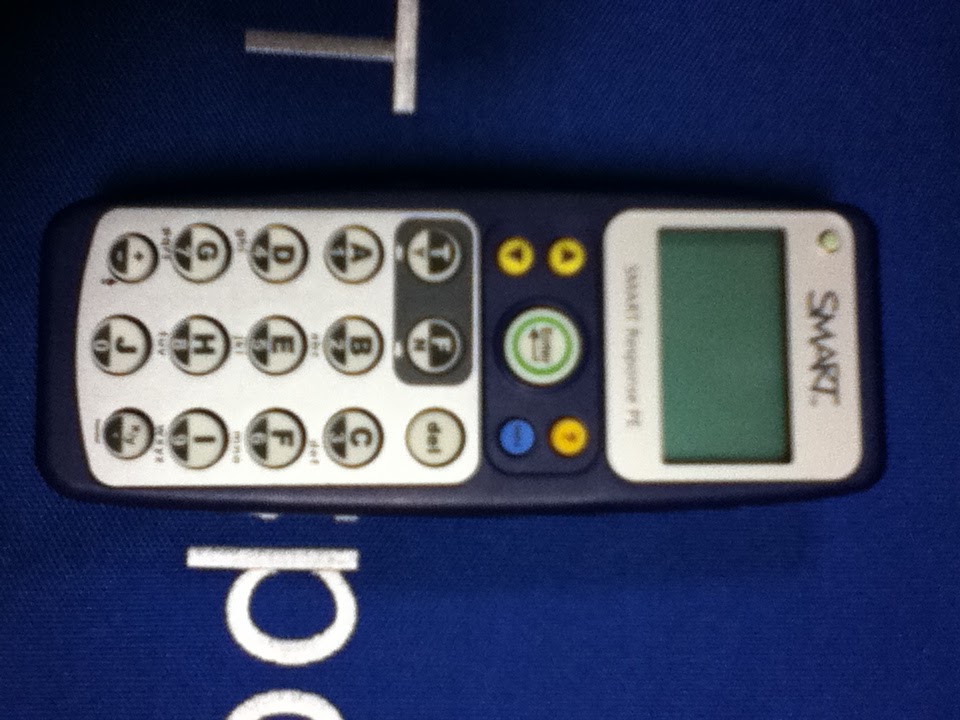 |
| Smart Response PE Remote |
This system is great when giving short assessments. For example a five question review to begin or end class works very well using this system. Personally, I have also given longer assessments, however that is when issues arise. The issues are not with the software or hardware, but with class management. You see the questions are projected onto the SmartBoard. Therefore students can only move as fast as the slowest person answering in the class. A few times last year I combated this by printing off paper copies of the assessment and then having the students enter the answers using the clickers. This worked okay, but it then brought paper back into the equation.
Before I was able to find funding to purchase the class iPod Touches I heard that Smart was beta testing a new program called Smart Response VE. This program was aimed at allowing students to use their iPods and phones as a clicker. Smart Response VE was aimed more toward colleges. Since some colleges had begun requiring students to purchase their own personal Smart Response clicker, VE would allow those students to save money and simply use their smartphones, iPods, or other internet ready devices. While I did not know all of the details about the new software, for me one of the most exciting parts was that the questions and answers would appear directly on the screens of the devices. This would allow students to work at their own pace and go back on their own to check or change previous answers.
Since Smart Response VE is aimed more at colleges than elementary, middle or high schools licenses are purchased per teacher. Fortunately, there was still some money in the software budget that allowed the purchase of a license for my classroom until June 1, 2013. Since I have only had about a week to experiment with Smart Response VE my experience is limited. In fact I have not used the program for a quick assessment, only for a unit test. Nevertheless, I wanted to share what we were able to do and how it works.
 |
| http://response.smarttech.com |
Once the students sign in, I can still see how they are progressing and if I choose what answers they have chosen. There answers are not locked until they click submit after completing the questions. There is a slight delay once the students have chosen their answers before it shows up on the computer, but it is not an extremely long delay (15-20 seconds in most cases).
 |
| Example True/False Question |
 |
| Example Multiple Choice Question |
 |
| Question List, any question can be clicked on to change or review the answer(s). |
 |
| Submitting Answers |
Thursday, May 3, 2012
Avoiding Technology Distraction
As a teacher I deal with students being distracted on a daily basis. Distractions can stem from just about anything and anywhere. Some of the most common distractions are caused by tools that the students need; scissors, pencils, erasers, and even textbooks can be distracting for many students. Even with the amount of technology I use in my classroom I spend much more time reminding students to stop playing with pencils than to stop playing with their iPods or other technology.
The most common critique I hear about using technology in classrooms is that the technology is a distraction. My response to this is simple; technology if not used correctly can be a distraction. However, everything in a classroom, if not used correctly, can be a distraction. If guidelines and expectations are consistent when using technology the distractions caused by technology can be minimized to that of the distractions of a pencil.
Here are the guidelines that my students and I follow in regards to using technology (iPod Touches, computers, SmartBoard):
 |
| Imagination and a pencil can be distracting to elementary students! |
Here are the guidelines that my students and I follow in regards to using technology (iPod Touches, computers, SmartBoard):
- Unless specifically told to do so students must ask to use any technology.
- Students only have iPods at their desks during instruction time when they need them to do part or all of an assignment.
- Students never have their iPods during lesson introductions or when instructions are being given.
- Other than rare occasions or free time iPods are used for educational purposes. Even during free time the iPods must be used in an appropriate manner. One of the ways to ensure this is that the only game apps installed on the iPods have educational value..
- No photographs can be taken unless they are part of an assignment (using the "Restrictions" function I can easily disable the camera if students are misusing them).
- When technology becomes a distraction or an issue in some other way the student will lose the privilege of using the technology for a set period of time.
Subscribe to:
Posts (Atom)